IPTV buffering fix USA: find the cause first
IPTV buffering fix USA starts with diagnosis, because the same frozen picture has four different causes and each one has a different fix. A slow connection freezes every channel at the same time of evening. A congested Wi-Fi band freezes streams when the neighbors come home. A full device cache freezes one app while the others play fine. A dead feed freezes one channel while the rest play perfectly. The test that separates them takes two minutes: run a speed test on the device at 8 PM, change to a different channel, and open a different app. If the speed is fine and only one channel freezes, the feed is the cause and no setting on your side will fix it. If every channel freezes and the speed test shows 8 Mbps, the connection is the cause and the fix is the network.
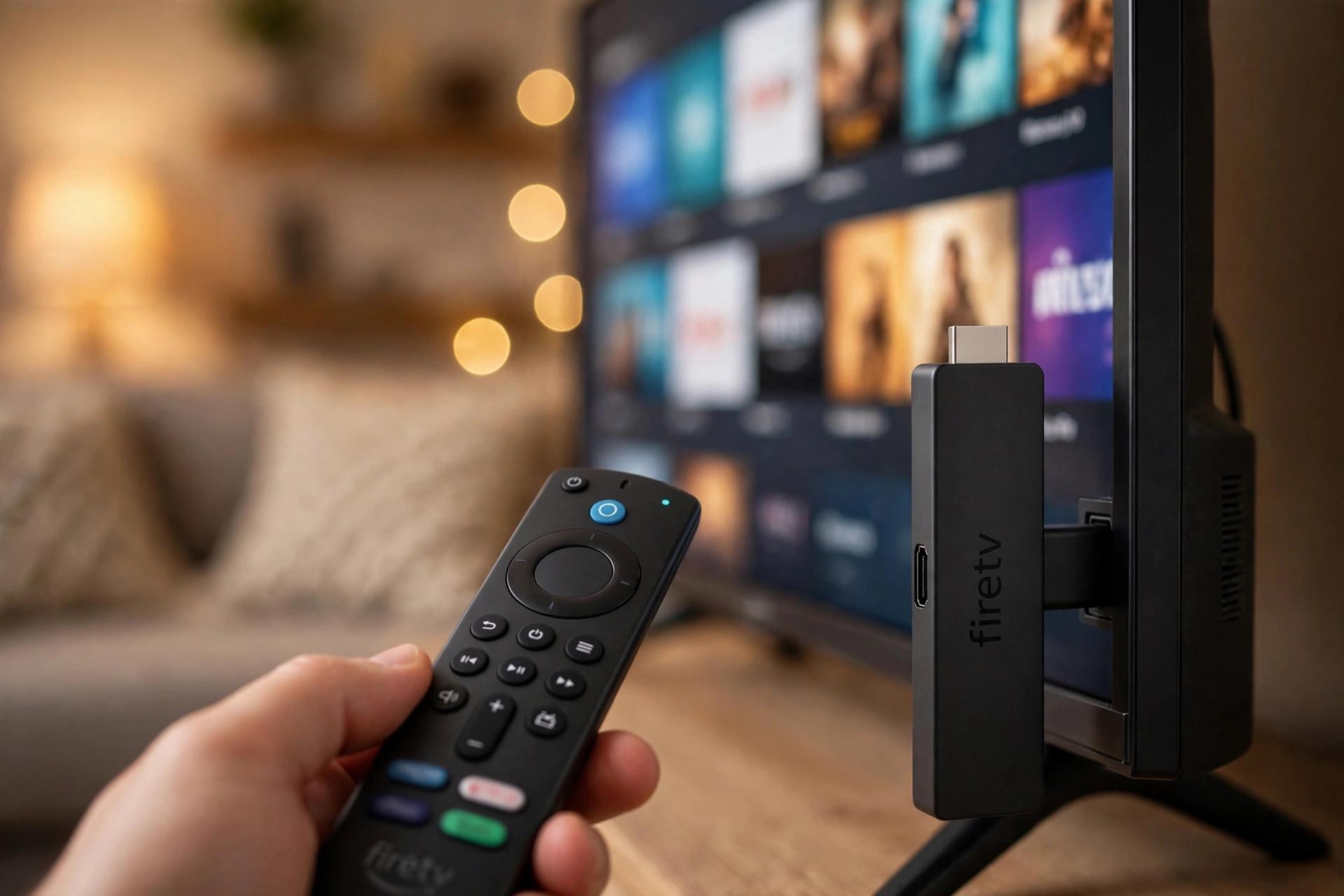
Run the test at the right hour. A connection that tests at 100 Mbps at 10 AM can test at 15 Mbps at 8 PM, when the whole street streams, and that evening number is the only one that matters for live TV. Test on the device itself, not on the phone: the Firestick has a built-in test under Settings, then Network — highlight the Wi-Fi name and press Play/Pause. Android TV has the Analiti app, free in the Play Store. Apple TV has the Speedtest app. Test twice, a minute apart, and take the lower number. The Firestick setup guide covers the stick and the network side, and the device setup roundup compares the connection options per device.
Fix the Wi-Fi: bands, placement and Ethernet
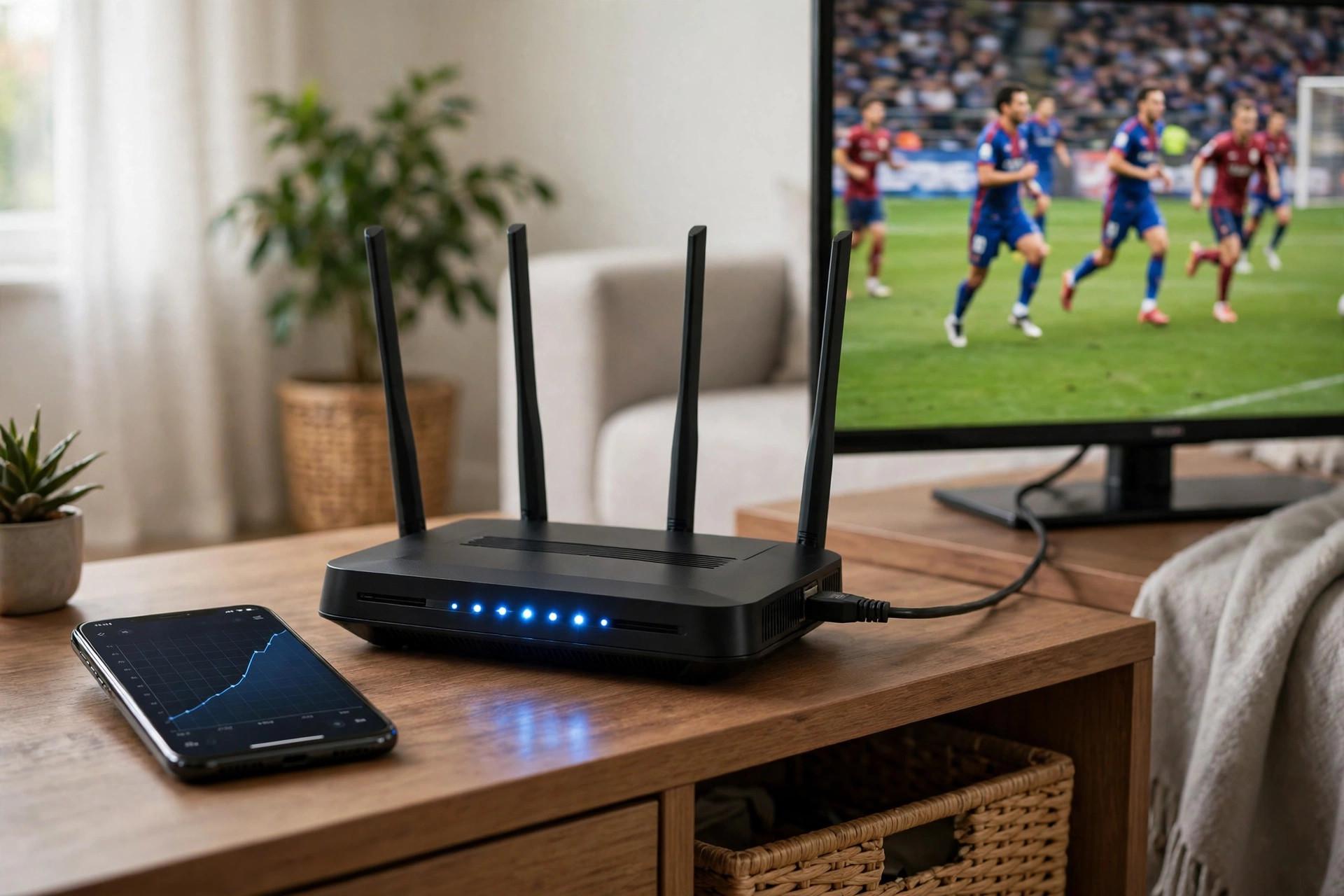
Wi-Fi is the cause of most evening buffering, and the band is the first thing to check. The 5 GHz band is faster and less crowded, but its signal drops fast through walls; the 2.4 GHz band is slower but travels further. A Firestick in the same room as the router belongs on 5 GHz. A TV two rooms away belongs on 2.4 GHz, or on Ethernet. Check the band on the device: Firestick under Settings, then Network, then About; Android TV under Settings, then Network and Internet; Apple TV under Settings, then Network. If the signal strength reads Fair or Poor on 5 GHz, switch to 2.4 GHz and test again — a strong 2.4 GHz signal beats a weak 5 GHz signal every time.
- Run a speed test on the device at 8 PM and compare with 25 Mbps for 4K.
- Put the streaming device on 5 GHz in the same room, 2.4 GHz through walls.
- Use the Ethernet adapter on Firestick or the Ethernet port on Shield and smart TVs.
- Move the router out of a cabinet and away from the microwave and baby monitor.
- Restart the router once a week — unplug it for thirty seconds, then plug it back in.
- Test again after every change, so you know which fix actually worked.
Placement matters as much as the band. A router inside a cabinet, behind the TV, or next to a microwave loses signal to the walls and the interference — move it into the open, at waist height or higher, away from thick walls and metal shelves. A mesh Wi-Fi system fixes a house where one router cannot reach the far bedroom: a node in the hallway gives the TV a strong signal without a cable. The Ethernet adapter for Fire TV costs about $15 and removes Wi-Fi from the equation entirely — it is the single best upgrade for anyone who sees buffering every evening, and the Shield TV Pro, Formuler Z11 Pro Max and most smart TVs already have an Ethernet port on the back. A wired device holds 4K through the evening peak, while a Wi-Fi device in a crowded apartment can dip below the 25 Mbps that 4K needs.
Fix the device: restart, cache and storage
A restart fixes more buffering than any settings change, because it clears the memory and kills the background apps that compete for the connection. On Firestick, hold Select and Play/Pause together for five seconds. On Android TV and Shield, hold the power button and choose Restart. On Apple TV, open Settings, then System, then Restart, or unplug the power for ten seconds. Restart the stick once a week, and restart it immediately when every channel starts freezing at once — a stick that has run for a month without a restart is slower than a fresh one, and the EPG database grows heavier every day it runs.
Cache is the second device fix. Every player app stores guide data, logos and thumbnails, and a corrupt cache makes the app stutter on channels that played fine yesterday. On Firestick, open Settings, then Applications, then Manage Installed Applications, then the player name, then Clear Cache, and reopen the app. Clearing cache never deletes the login or the playlist — it only removes temporary files. Clear Data is the last resort, because it wipes the login and you start from the form again. Storage is the third fix: a Firestick with less than 1 GB free stutters on the EPG, and a Chromecast with Google TV has only 8 GB total. Delete unused apps under Settings, then Apps, and keep only the player you actually watch.
Fix the app: buffer size, decoder and stream quality
The player settings decide how a stream survives a slow night. In TiviMate, open Settings, then Playlists, then the player settings, and set the buffer size to Large and the decoder to Hardware — software decoding taxes the Firestick chip and drops frames on 4K streams. In Smarters Pro, the same two settings sit under Settings, then Player Settings. A large buffer rides out the small speed dips that every home network has at 8 PM, because the app holds more video ahead of the picture. Set the default stream quality to Auto so the app drops to HD on a slow night instead of freezing on 4K — a smooth HD stream beats a frozen 4K stream every time, and the app returns to 4K when the speed recovers.
| Fix | Where to find it | What it does |
|---|---|---|
| Buffer size Large | Player settings | Rides out speed dips |
| Hardware decoder | Player settings | Keeps 4K smooth on the chip |
| Quality Auto | Player settings | Drops to HD instead of freezing |
| Clear cache | Device settings, Apps | Removes corrupt guide files |
| Restart device | Hold Select + Play/Pause | Clears memory and background apps |
| Ethernet | Adapter or TV port | Removes Wi-Fi from the equation |
The EPG update interval matters too: set it to 12 hours, not every hour, because an hourly update downloads the whole guide again and competes with the stream for bandwidth. In TiviMate that is Settings, then EPG; in Smarters Pro it is Settings, then EPG Settings. If the app offers an external player — VLC or MX Player — keep the built-in player as the default, because external players lose the EPG overlay and the record button, and their buffers are smaller. The TiviMate setup guide covers the player settings, and the EPG setup guide explains the guide update interval.
Fix the network: router, ISP and peak hours
The router is the box most people never touch, and it is the cause of a surprising amount of buffering. Restart it once a week: unplug the power for thirty seconds, plug it back in, and wait two minutes for the connection to return. Check for a firmware update in the router admin page — an old firmware mishandles the dozens of simultaneous connections a big playlist opens, and an update fixes it in one restart. If the router separates the 2.4 GHz and 5 GHz bands into different network names, give them different names and connect the TV to one of them deliberately, instead of letting the device hop between bands mid-stream.
The ISP is the last suspect, and the test is simple: run a speed test on a wired PC at 8 PM. If the wired PC also tests slow, the connection itself is slow at peak hours, and no device setting will fix it — call the ISP and ask about the evening speed, or upgrade the plan. A 100 Mbps plan is the practical floor for a house with two 4K streams, and a 300 Mbps plan is comfortable for four. A VPN can help when the ISP throttles video traffic, and it can hurt when the VPN server is slow — test with the VPN on and off, at the same hour, and keep whichever tests faster. The Android TV setup guide covers the speed test apps per device.
One channel buffering, all channels buffering, and the server side
One channel buffering while the rest play is a feed problem, not your connection. Wait thirty seconds, change channel and come back — feeds rotate and recover on their own, and a channel that froze during a live game usually returns within minutes. If the same channel freezes every evening at the same time, the feed is overloaded at peak hours, and the fix is to watch the same game on a different channel — most big games air on two or three channels at once. All channels buffering at once is a connection problem, and the fixes above are the order to try them: speed test, band, restart, cache, buffer, Ethernet.
The server side is the part you cannot fix, and the honest test is the trial: start the free 24-hour trial, watch at 8 PM during a live NFL game, and judge the service by that hour. If the picture holds up during the game, it will hold up any night. If every channel freezes at 8 PM on a 100 Mbps connection with the stick on Ethernet, message support on WhatsApp with the speed test result and the channel name — the team can check the line and the server from their side in under a minute, and a screenshot of the frozen screen gets the fastest answer. The plans page lists the yearly prices, and the refund policy covers the 7-day money-back window if the service does not hold up.
- Test at 8 PM on the device itself — the morning number means nothing.
- One buffering channel is a feed problem; all channels buffering is your network.
- Set the player buffer to Large and the decoder to Hardware.
- Restart the stick and the router weekly, and clear the app cache monthly.
- Use Ethernet for 4K, and test with the VPN on and off before deciding.