IPTV on Windows PC setup USA: which player to pick
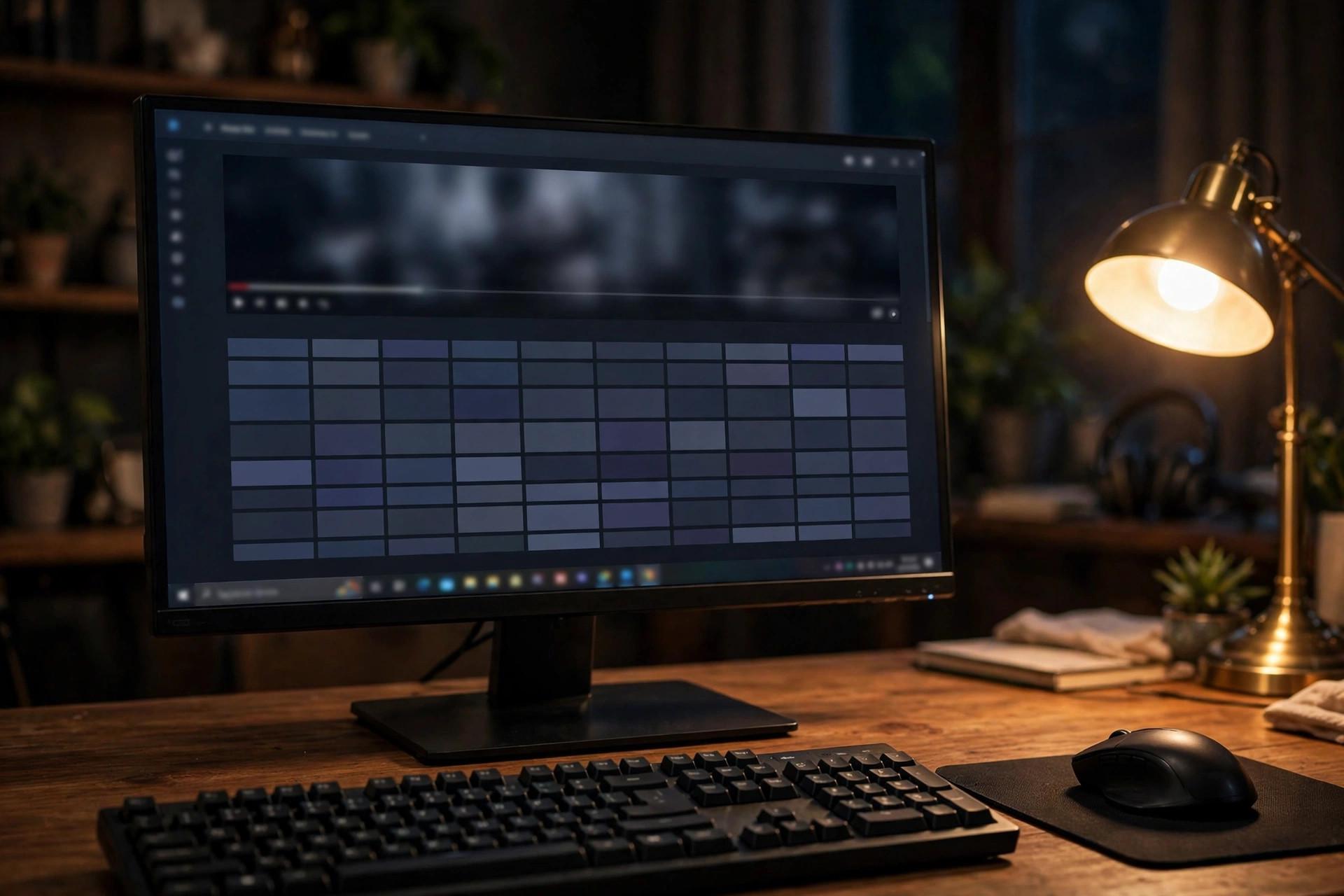
IPTV on Windows PC setup USA has three good players, and the right one depends on the machine. IPTV Smarters Pro for Windows is the first choice for most people: it takes Xtream Codes and M3U logins, it shows the EPG, it supports multi-screen and recording, and its interface is the same as the phone app, so the login feels familiar. VLC is the second choice: it is free, it plays any M3U link, it costs nothing and it never shows ads — but it has no EPG grid and no series browser, so it suits a playlist you already know. MyIPTV Player from the Microsoft Store is the third choice: it is the lightest of the three, it loads fast on an old laptop, and it keeps the channel list and the guide in one window.
The PC is the most flexible IPTV screen in the house: it is the desk TV, the second screen during work, and the recording machine that never sleeps. A laptop on Wi-Fi plays HD smoothly, and a desktop on Ethernet plays 4K without thinking about it. The screen is the limit — a 27-inch 1440p monitor shows the guide beautifully, and a second monitor lets the game play on one screen while work stays on the other. The Mac setup is covered in the device roundup, and the Smarters Pro setup guide walks through the player itself in detail.
Install IPTV Smarters Pro on Windows 10 and 11
Download IPTV Smarters Pro for Windows from the official site — the installer is a normal .exe file, about 100 MB. Run it, accept the defaults, and open the app from the Start menu or the desktop icon. The first screen offers Login with Xtream Codes API or Load Your Playlist or File/URL. Choose Xtream Codes, type a playlist name such as Top IPTV USA, then the username, password and server URL from the WhatsApp message, and click Add User. Typing on a PC is easy because you can copy the password straight from WhatsApp Web and paste it into the field — no on-screen keyboard, no mistyped letters. The app contacts the server, and a correct login moves to the home screen within seconds.
- Download IPTV Smarters Pro for Windows and run the installer.
- Choose Login with Xtream Codes API on the first screen.
- Type a playlist name, then the username, password and server URL from WhatsApp.
- Paste the password from WhatsApp Web instead of typing it by hand.
- Click Add User and wait one to two minutes for the first sync.
- Open Live TV and check that the channel groups and the guide load.
- Pin the app to the taskbar for one-click TV.
The first sync takes one to two minutes on a wired connection and a little longer on Wi-Fi, because the movie and series catalogues are large. Do not close the app during that first sync — interrupting the download leaves half the posters missing until the next refresh. Once the home screen appears, open Live TV and scroll the groups: USA locals, sports, news, movies, kids, Latino and international. If a group is empty, pull down to refresh or close the app fully and reopen it so the sync reruns. Pin the app to the taskbar with a right-click on its icon, so the next launch is one click — the PC equivalent of the home-screen shortcut on a Firestick.
Play an M3U playlist in VLC on Windows
VLC is the fallback every Windows user should know, because it plays an M3U link with no account and no install beyond the player itself. Open VLC, click Media, then Open Network Stream, paste the M3U playlist URL from the WhatsApp message, and click Play. The channel list appears under View, then Playlist, and double-clicking a channel starts it. VLC has no EPG grid, no series browser and no favorites in the IPTV sense, but it never buffers on a playlist that other players struggle with, because its network stack is the most forgiving of the three. Keep VLC installed even if Smarters Pro is the daily player — it is the diagnostic tool that tells you whether a dead channel is the playlist or the app.
The M3U link carries the channel list and usually the EPG address, but it does not carry the movie and series catalogues the way Xtream Codes does, so the VOD rows look thinner in VLC. After adding an M3U playlist in Smarters Pro instead, open Settings, then EPG, and confirm the guide source loaded; if the guide is blank, the M3U link has no EPG address attached, and the fix is to ask support for the Xtream Codes login instead. Keep the M3U link private: anyone with the link can watch on your line, and a shared link is the most common reason a line gets locked. The EPG setup guide explains guide sources for both login types.
EPG, recording and multi-screen on Windows
The EPG in Smarters Pro lives under the TV Guide tab on the home screen, and it loads automatically with an Xtream Codes login. The guide shows the current programme and the next one for each channel, and clicking a programme opens its description with the start and end time. Set the guide to refresh on app start under Settings, then EPG Settings, and leave the update interval at 12 hours. If the guide shows the wrong times, the Windows clock is the cause: open Settings, then Time and Language, then Date and Time, and set it to automatic — the app reads the system clock, and a PC set to the wrong zone shifts the whole grid.
Recording on Windows is the best in the house, because the PC has the storage and it never sleeps if you tell it not to. Smarters Pro records live TV from the player screen: open a channel, click the record button, and the app saves the stream to the Videos folder or any folder you pick under Settings, then Recording. Scheduled recordings follow the EPG — pick a programme in the guide, choose Record, and the app starts at the right time. A 4K stream records at about 7 GB per hour and HD at about 2 GB per hour, so a 500 GB drive holds a season of games. Set the PC sleep timer to Never on recording nights under Settings, then System, then Power, or the machine powers down mid-game. The recording guide compares recording across Firestick, Formuler and PC in one place.
Windows 4K, HDR and audio settings for IPTV
Picture settings on Windows live in two places: the app and the system. In Smarters Pro, open Settings, then Player Settings, set the decoder to Hardware and the buffer to Large — hardware decoding hands the video to the graphics card instead of the processor, which keeps 4K smooth, and a large buffer rides out the small speed dips that every home network has at 8 PM. In Windows, open Settings, then System, then Display, and set the monitor to its native resolution with HDR on if the monitor supports it — Windows HDR makes SDR streams look washed out if it is left on for everything, so turn HDR on only for the monitor you watch on, and let the app handle the rest.
| Setting | Where to find it | Recommended value |
|---|---|---|
| Decoder | Smarters Pro, Player Settings | Hardware |
| Buffer | Smarters Pro, Player Settings | Large |
| Display | Windows, System, Display | Native resolution, HDR per monitor |
| Audio | Windows, System, Sound | Best output, spatial sound off |
| Network | Ethernet or 5 GHz Wi-Fi | Wired for 4K |
Audio on Windows usually runs through the monitor speakers, a headset or a soundbar over HDMI or optical, and the setting sits under Settings, then System, then Sound. Choose the right output device — Windows loves to send sound to the wrong one after an update — and turn off spatial sound for live TV, because it adds echo to commentary. A wired Ethernet connection is the single best upgrade for a desktop: a cable from the router to the PC removes Wi-Fi from the equation entirely, and the difference shows on 4K streams at 8 PM. A laptop on 5 GHz Wi-Fi in the same room as the router is fine; a laptop two rooms away on 2.4 GHz is not.
Windows IPTV problems and the fixes that work
The error most people see is Invalid username or password on first login, and nine times out of ten it is a typed password, not a broken account. Passwords are case-sensitive, and the fix is to paste from WhatsApp Web instead of typing — copy the password from the message and paste it into the field. If the login is right but the playlist loads empty, the line may have expired or the server URL may carry a wrong port; check the dates in the WhatsApp message and retype the URL character by character. A playlist that loads channels but no EPG usually needs the guide source re-added under Settings, then EPG Settings, or the Xtream login instead of M3U.
An app that crashes on launch usually has a corrupt cache: open Settings, then Apps, then Installed Apps, then IPTV Smarters Pro, then Advanced Options, then Repair — repair keeps the login, while Reset wipes it, so try Repair first. If a single channel shows a black screen while others play, that feed is down — change channel and come back in a few minutes. When the whole app buffers, run a speed test and compare with the 25 Mbps that 4K needs, and switch to Ethernet or the 5 GHz band. A Windows firewall prompt on first launch is normal — allow the app through, or the playlist never loads. Message support on WhatsApp with the exact error text and a screenshot when the fix is not obvious.
- Paste passwords from WhatsApp Web — never type them by hand.
- Set the player decoder to Hardware and the buffer to Large for 4K.
- Use Ethernet on a desktop and 5 GHz Wi-Fi on a laptop.
- Try Repair before Reset in the app settings — repair keeps the login.
- Set the PC sleep timer to Never on nights you schedule a recording.