How to record IPTV USA: the three ways to save a show
How to record IPTV USA comes down to three options, and the right one depends on the device in front of you. Scheduled recording saves a programme from the EPG to local storage — a USB drive on a Firestick or Formuler box, a hard drive on a PC, or a network share on a Shield. Catch-up plays a programme that already aired from the provider server, with no storage and no setup, on channels that show a clock icon in the guide. Downloads save a movie or an episode to a phone for offline viewing, which is the only option that works on a plane. Recording is the most flexible of the three, because it works on any channel and keeps the file until you delete it — but it needs the right player, the right storage, and a device that stays awake.
The player decides whether recording exists at all. TiviMate Premium records on Firestick, Shield and Android TV. IPTV Smarters Pro records on Firestick, Android, Windows and phones. Formuler boxes record through MYTVOnline. MAG boxes record to a USB drive through the built-in recorder. Apple TV cannot record, because tvOS blocks background recording and the box has no USB storage. Samsung and LG smart TV apps generally cannot record either, because the TV operating system does not expose storage to the player. The EPG setup guide explains the guide that scheduled recordings follow, and the Formuler setup guide covers the box with the best built-in recorder.
Record IPTV with TiviMate Premium
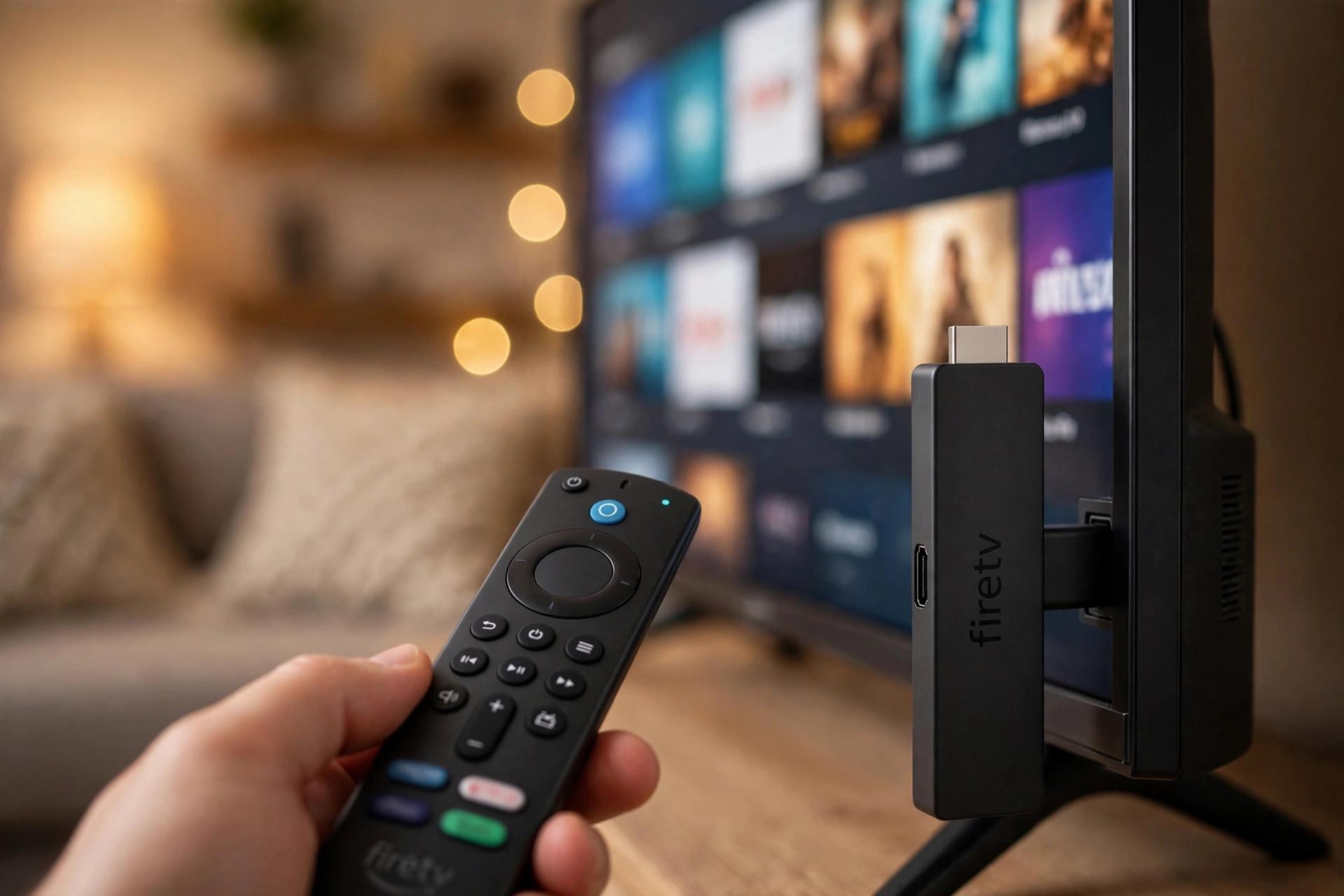
TiviMate Premium is the best recorder in the house, and the setup is short. Plug a USB drive into the Firestick 4K Max with an OTG cable, or into the Shield TV Pro USB port, and format it as external storage — the Firestick asks on first plug-in, and the Shield formats from Settings, then Device Preferences, then Storage. Open TiviMate, go to Settings, then Recording, and pick the USB drive as the destination. Open any channel, press the record button on the player screen, and the app saves the stream from that moment. Stop the recording from the same button, and the file appears in the Recordings section on the home screen, named by channel and time.
- Plug a USB drive into the Firestick 4K Max with an OTG cable, or into the Shield Pro USB port.
- Format the drive as external storage on the device before the first recording.
- Open TiviMate Settings, then Recording, and pick the USB drive as the destination.
- Press record on the player screen to start, and again to stop.
- Schedule from the EPG: pick a programme, choose Record, and the app starts on time.
- Set the device sleep timer to Never on recording nights.
- Check the Recordings section on the home screen to play finished files.
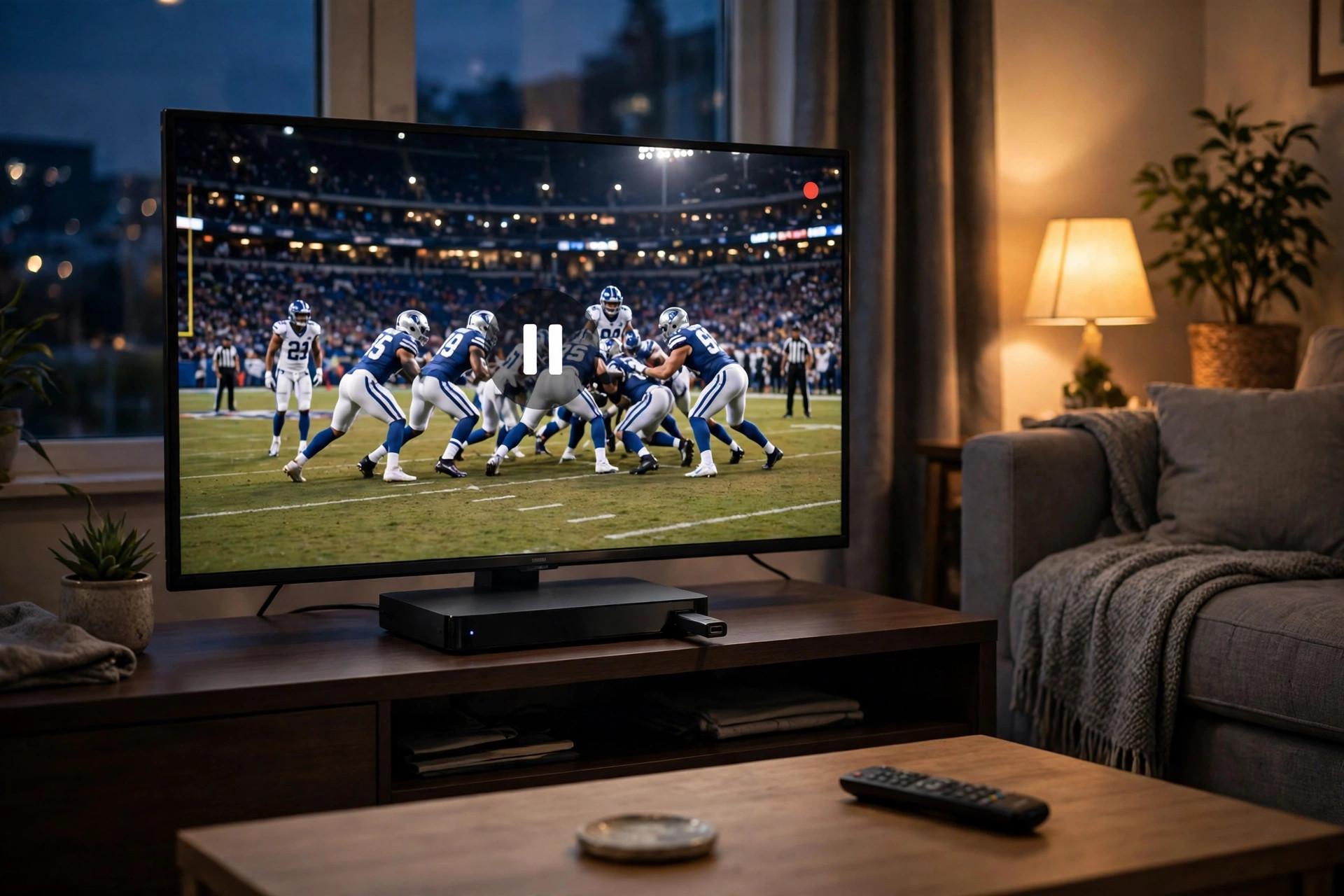
Scheduled recordings follow the EPG: open the guide, highlight a programme, choose Record, and TiviMate starts at the programme start time even if you are watching something else. The app records the stream exactly as broadcast, with the original quality and the original audio track, and it splits long recordings into files automatically. A 64 GB drive holds about thirty hours of HD or nine hours of 4K, and a 128 GB drive doubles that. If a scheduled recording never starts, the usual cause is the device going to sleep: open the Firestick Settings, then Preferences, then Sleep, and set the timer to Never on recording nights, or the stick powers down mid-game. The free version of TiviMate cannot record at all — the upgrade is about $10 a year or $30 for life inside the app.
Record IPTV with IPTV Smarters Pro
Smarters Pro records from the player screen on every device it runs on: Firestick, Android TV, Windows, iPhone and iPad. Open a channel, tap the record button, and the app saves the stream to the device storage or, on Firestick, to a USB drive attached with an OTG cable. The recording settings under Settings, then Recording, let you pick the folder and the file format, and scheduled recordings follow the EPG — pick a programme in the guide, choose Record, and the app starts at the right time even if you are watching something else. On phones, the recording saves to the phone storage, which is handy for a game you want to rewatch on the train, though a phone fills up fast at 7 GB per hour of 4K.
Smarters Pro also has a download manager, which is different from recording: a download saves a movie or an episode from the VOD catalogue, not a live channel, and it plays offline with no connection. That is the option for a flight, while recording is the option for a live game. The app shows recording progress on the player screen, and it warns you if the storage is nearly full before it starts. If the record button is missing, the app version is old — update it from the store, because recording arrived in a later release on some platforms. The Smarters Pro setup guide covers the login and the player settings, and the Windows setup guide covers recording on a PC with a big hard drive.
Record on Formuler, MAG and Shield: the box options
Formuler boxes have the best built-in recorder of the dedicated boxes. Open MYTVOnline, pick a channel, press the record button on the remote, and the box saves to a USB drive plugged into the back — no OTG cable, no formatting dance, because the box has full-size USB ports and a recording menu of its own. Scheduled recordings follow the EPG in MYTVOnline, and the box can record one channel while you watch another, which a Firestick cannot do. MAG boxes record the same way: plug a USB drive into the box, set it as the destination under Settings, then System Settings, then Recording, and press record on the remote or schedule from the guide.
| Device | Player | Storage | Record while watching | Schedule from EPG |
|---|---|---|---|---|
| Firestick 4K Max | TiviMate Premium | USB via OTG | No | Yes |
| Shield TV Pro | TiviMate Premium | USB or network | No | Yes |
| Formuler Z11 | MYTVOnline | USB drive | Yes | Yes |
| MAG 540 | Built-in portal | USB drive | No | Yes |
| Windows PC | Smarters Pro | Hard drive | Yes | Yes |
| Apple TV | Smarters Pro | None | No | No |
The Shield TV Pro records to a USB drive or a network share, which is the most flexible storage of all: point TiviMate at a shared folder on a home server and the recordings land where the whole house can reach them. A network share needs a stable connection, so use the Shield Ethernet port, not Wi-Fi, for recording. The Windows PC is the other strong recorder: Smarters Pro saves to any hard drive, the machine has the storage for a season of games, and it can record one channel while you watch another on a second monitor. Apple TV cannot record at all, and Samsung and LG TV apps cannot either — on those devices, catch-up is the only way to watch something that already aired.
Catch-up: the recording you do not have to set up
Catch-up is the lazy recorder: channels with a clock icon in the guide let you scroll back and watch programmes that already aired, usually for 24 to 48 hours, with no storage, no setup and no schedule. Open the guide, scroll left to the programme, press OK, and it plays from the start. The catch-up window depends on the channel — major US networks usually keep 48 hours, sports channels keep 24, and some channels keep none at all. The window also depends on the player: TiviMate Premium and Smarters Pro both show the clock icon, while IBO Player shows catch-up channels in a separate group in some playlist layouts.
Catch-up is not a substitute for recording when the programme matters: the window closes, the file is not yours, and a game that aired three days ago is gone. Recording keeps the file until you delete it, and it works on every channel, including the ones without a clock icon. The practical rule is simple: use catch-up for anything you missed in the last day, and record anything you know you will miss before it airs. A scheduled recording set from the EPG on Sunday morning is the difference between watching the game on Sunday night and finding out the score on Monday. The buffering fix guide covers the network side when a recording stutters on playback.
Recording storage: sizes, drives and formats
Storage math decides whether a recording finishes or fails halfway. A 4K stream records at about 7 GB per hour, HD at about 2 GB per hour, and SD at about 1 GB per hour — so a 64 GB drive holds roughly nine hours of 4K, thirty hours of HD, or sixty hours of SD. A 128 GB drive doubles that, and a 256 GB drive holds a season of weekly games. Buy a USB 3.0 drive, not a USB 2.0 stick, because a slow drive drops frames on a 4K recording — the drive must write as fast as the stream arrives. Format the drive as exFAT or NTFS on a computer before the first use, because FAT32 caps single files at 4 GB and splits a long game into pieces.
Check the free space before a big night: the app warns you when the drive is nearly full, but a warning at kickoff is too late. Delete finished recordings from the Recordings section after watching, and keep one drive for recordings and another for anything else, so a full drive never blocks a new one. A network share on the Shield avoids the whole problem, because the server has terabytes — but it needs the Ethernet cable, not Wi-Fi, or the recording stutters when the network dips. If a recording plays back with frozen frames, the drive was too slow or the network dipped; record the next one at HD instead of 4K and test again.
Recording problems and the fixes that work
A recording that never starts usually has one cause: the device went to sleep. Set the sleep timer to Never on recording nights — Firestick under Settings, then Preferences, then Sleep; Shield under Settings, then Device Preferences, then Screen Saver; Windows under Settings, then System, then Power. A recording that stops halfway usually means the drive filled up or the stream dropped: check the free space, and record at HD instead of 4K on a slow night. A recording that plays with no sound usually means the audio track was Dolby Digital and the player on the second device cannot decode it — play it back on the device that recorded it, or set the recording audio to stereo in the player settings.
A scheduled recording that records the wrong programme usually means the EPG times were off when it was set — fix the device clock to automatic with the correct US time zone, then set the recording again. A recording button that does nothing usually means the player needs Premium — TiviMate recording is a Premium feature, and the free version shows a reminder instead of recording. If the drive is not recognized at all, reformat it on a computer as exFAT and try again, or try a different drive — some cheap sticks report fake capacities and fail on long writes. Message support on WhatsApp with the device name and the error when the fix is not obvious.
- Use a USB 3.0 drive, formatted exFAT, and keep 10 GB free at all times.
- Set the device sleep timer to Never on nights you schedule a recording.
- Record at HD on a slow network and 4K only on Ethernet or strong 5 GHz.
- Use catch-up for anything missed in the last day, and record the rest.
- Delete finished recordings promptly so a full drive never blocks a new one.