IPTV setup USA: start with the free trial
IPTV setup USA starts with the free 24-hour trial, and that order matters: test before you pay, not after. Message support on WhatsApp, get the login details, and run the setup on the main TV first. The trial is the whole service for a day — every channel, every sport, every movie — with no card details and no commitment. Watch at 8 PM during a live NFL or NBA game, because the evening hour is the stress test: a service that holds up when the whole street streams will hold up any night, and a service that freezes at 8 PM will freeze every night that matters. If the picture holds up during the game, subscribe. If it does not, you have lost nothing but an evening.
The trial login arrives as a WhatsApp message with everything in one place: a username, a password and a server URL for Xtream Codes players, or a portal URL for MAG and Formuler boxes, or a MAC address and key for IBO Player on Samsung, LG and Firestick. Save that message — star it, pin it, screenshot it — because every setup here starts from it, and retyping a password from memory is how most first logins fail. The plans page lists every duration once the trial convinces you: Basic from $14.99 a month, Premium from $19.99, yearly Premium $99.99, and multi-device yearly plans for two, three and four screens.
The four login types, explained once
Every IPTV setup in the USA uses one of four login types, and knowing which one you have saves half the confusion. Xtream Codes is a username, a password and a server URL, and it works in TiviMate and Smarters Pro on Firestick, Android TV, Shield, Apple TV, iPhone, Windows and Mac — it carries the channel list, the movies, the series and the EPG in one login, and it is the login to use whenever you have the choice. The MAC activation is a MAC address and a key shown on screen, and it works in IBO Player on Samsung, LG and Firestick — support activates the playlist against that address, and the channels load on restart. The portal URL is a web address typed into the box, and it works on MAG and Formuler through the built-in portal. Mirroring is the phone screen on the TV, and it is the only way on Roku.
- Xtream Codes: username, password, server URL — TiviMate and Smarters Pro.
- MAC activation: MAC address and key — IBO Player on Samsung, LG, Firestick.
- Portal URL: web address in the box — MAG and Formuler built-in portal.
- Mirroring: phone screen on the TV — Roku, which lists no player app.
- M3U link: playlist URL — VLC and older players, guide sold separately.
The M3U link is the fifth option, and it is the weakest: it carries the channel list and usually the EPG address, but it does not carry the movie and series catalogues the way Xtream Codes does, so the VOD rows look thinner. If support sends an M3U link, it works — paste it into the player under Load Your Playlist or File/URL — but if the guide stays blank or the movies never fill in, ask for the Xtream Codes login instead. Keep every login private: anyone with the link or the credentials can watch on your line, and a shared login is the most common reason a line gets locked. The device setup roundup matches each login type to each device in one table.
Set up IPTV on the main TV in five minutes
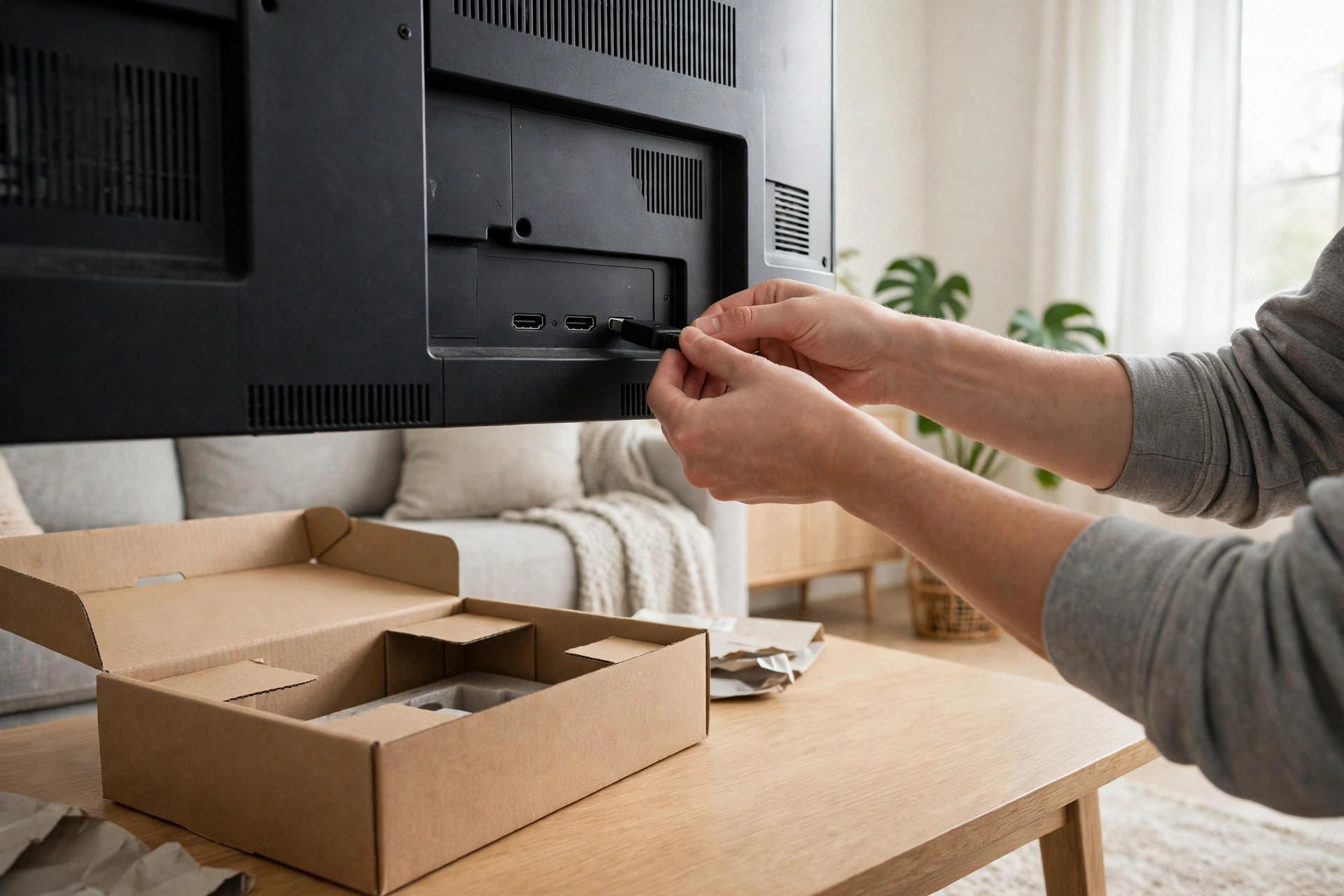
The main TV is where the trial is won or lost, so set it up first and set it up well. On a Firestick 4K Max, turn on Apps from Unknown Sources, install Downloader, get IBO Pro Player (ask on WhatsApp for the current code), send the MAC and key to support, and restart the app once the playlist is activated. On an Android TV or Shield, install TiviMate from the Play Store, choose Add Playlist, then Xtream Codes login, and type the three values. On a Samsung or LG TV, install IBO Player from the TV store and send the MAC and key. On an Apple TV 4K, install Smarters Pro from the App Store and log in with Xtream Codes, pasting the password from the iPhone keyboard. Each route takes about five minutes, and each one ends the same way: the channels, the movies and the guide load in one to three minutes.
Once the channels load, do the three checks that matter. First, open the guide and confirm programme names appear for tonight — a blank guide means the first sync did not finish, so wait three minutes with the app open. Second, open a live sports channel at 8 PM and watch for two minutes without touching anything — a stream that holds for two minutes at peak hour will hold for the game. Third, open a 4K movie and check the picture: if the TV reports 2160p and the stream looks sharp, the setup is done. If any check fails, the fix is in the troubleshooting section below, not in a new app. The Firestick setup guide and the Android TV setup guide cover the two most common main TVs in full.
Add the second screen: phone, bedroom TV and laptop
The second screen takes the same five minutes, with one rule: give it its own login. A single-device plan logs in on one screen at a time, so the living-room Firestick and the bedroom TV cannot watch together on one login — the second login either locks the first out or fails outright. A multi-device plan fixes it: yearly Premium covers 2 devices for $159.99, 3 for $224.99 and 4 for $269.99, and each device gets its own credentials so the two never clash. Set up the bedroom TV the same way as the main TV, then the phone: install Smarters Pro from the App Store or Play Store, log in with the second set of credentials, and test AirPlay or Cast to the TV from the phone.
The phone is the most useful second screen in the house: it is the TV you carry, the second screen during a game, and the fallback when the living-room TV is busy. Downloads save movies for offline viewing on a plane or a train, and picture-in-picture keeps the game in a floating window while you check messages. The laptop is the third screen: Smarters Pro for Windows with the same login, pinned to the taskbar, and the PC doubles as the best recorder in the house, because it has the storage for a season of games. The iPhone setup guide and the Windows setup guide cover both screens, and the multiple-device pricing is on the plans page.
EPG, favorites and recording: the first evening
The EPG is the programme guide, and it loads with the playlist on an Xtream Codes login — the grid fills in over the first one to three minutes, and it covers now and next on every channel, a full day on most networks, and a week on the major US channels. If the guide shows the wrong times, the device clock is the cause: set the clock to automatic with the correct US time zone — Eastern, Central, Mountain or Pacific — then run a manual EPG update in the player settings. Catch-up channels show a clock icon in the guide, and scrolling back plays programmes that already aired, usually for 24 to 48 hours. That is the easiest way to catch a game you missed without recording anything.
| First evening task | Where to do it | Time needed |
|---|---|---|
| Start the free trial | 2 minutes | |
| Set up the main TV | Player app | 5 minutes |
| Check the EPG | Guide button | 1 minute |
| Add favorites | Channel list, hold OK | 5 minutes |
| Test a live game at 8 PM | Sports channel | 2 minutes |
| Set a recording | Guide, programme, Record | 1 minute |
Favorites turn a 57,000-channel list into a TV you can actually use: highlight a channel, hold OK and choose Add to Favorites, and the favorites group appears at the top of the list. Do that on the first evening, for the ten channels the household actually watches, and the app stays usable for a year. Recording needs the right player — TiviMate Premium or Smarters Pro — and a USB drive on a Firestick or Formuler box, or a hard drive on a PC. Pick a programme in the guide, choose Record, and the app saves it at the scheduled time. A 64 GB drive holds about thirty hours of HD or nine hours of 4K. The EPG setup guide and the recording guide cover both in detail.
4K settings and the network: the two things that decide quality
Picture settings decide whether a 4K stream actually looks like 4K, and the network decides whether it plays without freezing. On the device, set the resolution to Auto up to 4K Ultra HD, turn on Match Original Frame Rate so 24 fps films play at 24 fps, and set the dynamic range to Adaptive so HDR switches on only when the stream carries it. On the TV, set the picture mode to Movie or Cinema, turn off motion smoothing, and set the HDMI input to Enhanced Format, or the TV caps the input at 1080p and 4K never arrives. In the player, set the decoder to Hardware and the buffer to Large, and set the stream quality to Auto so the app drops to HD on a slow night instead of freezing on 4K.
The network needs 10 Mbps for HD, 25 Mbps for 4K, and 50 Mbps or more for two streams at once — test the speed on the device itself at 8 PM, not on the phone in the morning, because the evening number is the only one that matters. Use the 5 GHz band in the same room as the router, 2.4 GHz through walls, or Ethernet where the device has a port — the Firestick adapter costs about $15, and the Shield, Formuler and most smart TVs already have a port on the back. Restart the stick and the router once a week, and clear the app cache monthly. The buffering fix guide walks through the speed test, the bands and the Ethernet fix step by step.
When something goes wrong: the troubleshooting order
When something goes wrong, work the list in order and stop at the step that fixes it. First, change channel: if only one channel freezes, that feed is down, and no setting on your side will fix it — come back in a few minutes. Second, restart the device: hold Select and Play/Pause on a Firestick, or restart from the settings on any other box — a restart clears the memory and fixes most one-off problems. Third, run a speed test at that hour and compare with the 25 Mbps that 4K needs. Fourth, clear the app cache — cache never deletes the login, so it is safe to try first, and Clear Data is the last resort because it wipes the login.
Fifth, retype the login details from the WhatsApp message, character by character, pasting the password instead of typing it — passwords are case-sensitive, and a mistyped password is the most common login error on every device. Sixth, check the device clock: a clock hours off breaks the secure connection and shifts the EPG. Seventh, message support on WhatsApp with the exact error text, the device name and a photo of the screen — the team can check the line and the server from their side in under a minute, and a screenshot gets the fastest answer. The refund policy covers the 7-day money-back window if the service does not hold up, and the installation help page lists free remote setup for all 13 devices.
- Start the free trial first, test at 8 PM, and pay only when convinced.
- Save the WhatsApp login message — every setup starts from it.
- Give each screen its own login on a multi-device plan.
- Set the clock to automatic and the EPG update to every 12 hours.
- Work the troubleshooting list in order, and screenshot the error for support.